
Key Points
Key Points
- 3-2-1 rule: 3 copies, 2 kinds of storage, 1 copy off-site
- Start with a free built-in backup: Windows Backup or Mac Time Machine
- Unplug the external drive after backup for an offline copy
- A cloud copy protects against theft, fire, and flood at home
- Sync is not backup: a real backup keeps older versions
- Test by restoring one folder before you need it in a crisis
On This Page
- Subscribe to CAAW News
- What You Will Get Done in This Guide
- Step 1: Learn the 3-2-1 Rule in Two Minutes
- Step 2: Decide What to Back Up Before You Start
- Step 3: Make Your External Drive Backup First
- Step 4: Add a Cloud Copy for the Off-Site Part
- Step 5: Test Your Backup Before You Trust It
- Step 6: Build a Routine You Will Actually Keep
- Frequently Asked Questions
- Is one backup enough if I am careful?
- Does cloud sync count as a backup?
- How often should I back up my computer?
- What size external drive should I buy?
- Should I unplug my backup drive after each backup?
- How do I know my backup actually works?
- Final Thoughts
- Sources I Used
- React to this story
I lost a whole summer of photos once, and I still remember the exact moment I knew they were gone. My old laptop made a clicking sound, then it went quiet, and then it never turned on again. I had meant to copy those photos somewhere safe. I had meant to do it for months. And in one afternoon, years of family trips, my daughter’s first bike ride, and a whole folder of work I needed were just gone. I am telling you this because I do not want you to learn the same lesson the hard way.
I am not a computer expert, and I do not run a server room in my house. I am just someone who got burned once and then got serious about backups. Since that day, I have backed up every computer I own, and I have helped friends and family do the same. I have also made plenty of mistakes along the way, like leaving a backup drive plugged in all the time, and forgetting to test whether my backup actually worked. So this guide is honest about what works, what does not, and what I would do differently.
Here is my promise to you: if you give this one calm hour today, you will end it with a backup system that protects your photos, your documents, and your work, even if your laptop is stolen, dropped, or hit by ransomware. This guide is for anyone with a Windows PC or a Mac who wants a simple plan, not a technical manual. And here is the best part: you do not need to buy anything fancy to start. You can start free today, and add the paid parts later if you want them. So let us fix this before your next scare, not after it.
A quick note on trust: I am not selling you a backup service, and I earn nothing from the tools I name here. I name them because they are the ones most guides and providers describe, and because I have used the free versions myself. Prices change often, so check the provider’s own page before you pay for anything.
What You Will Get Done in This Guide
- Understand the 3-2-1 rule in plain words, with no jargon
- Make your first full backup today, even if you have never done one
- Set up an external drive backup you can restore from fast
- Add a cloud copy so fire, flood, or theft cannot take everything
- Test your backup so you know it works before you need it
- Build a simple routine that keeps itself going every week
Step 1: Learn the 3-2-1 Rule in Two Minutes
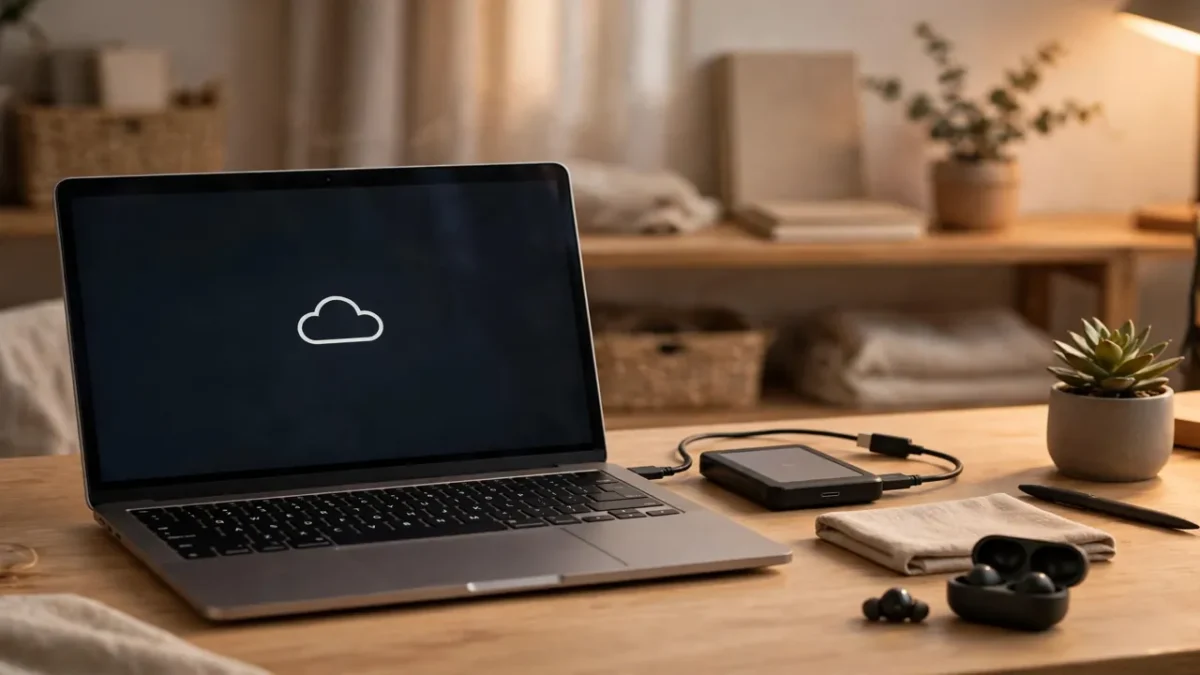
I first heard the 3-2-1 rule from a friend who works in IT, and I thought it sounded too simple to be real. It is not. The rule says this: keep three copies of your important data, on two different kinds of storage, with one copy off-site. That is it. Your computer holds copy one. An external hard drive holds copy two. A cloud service holds copy three, and because the cloud lives far away from your house, it counts as the off-site copy.
Why does this matter? Because each kind of disaster kills a different copy, but it rarely kills all three at once. If your laptop drive fails, your external drive saves you. If your house floods or someone steals your laptop and your drive together, your cloud copy saves you. If ransomware locks your computer, a clean copy that the virus cannot reach saves you. I learned this the hard way, and I wish someone had explained it to me in one paragraph years ago.
Some security vendors now talk about a longer version for 2026, called 3-2-1-1-0. As reported in a 2026 backup guide, this adds one copy that is offline, locked, or air-gapped, so even you cannot delete or change it quickly, and zero errors, which means you actually test your restores. I like this version, and I will show you how to get the offline part for free: just unplug your external drive when the backup finishes. That one habit turns a normal drive into an offline copy.
Here is what I want you to stop believing today. A backup is not the same as sync. If you keep files in a synced folder and you delete a file by mistake, the sync service may delete it everywhere. A real backup keeps older versions, and it keeps files you deleted for a while, so you can go back in time. That difference matters more than any brand name, so always check whether a service keeps versions before you trust it with your only copy.
Step 2: Decide What to Back Up Before You Start
I made this mistake on my first real backup, and it cost me a weekend. I backed up my Documents folder, felt proud of myself, and then realised my photos lived in three other places, my browser bookmarks were nowhere, and my email was only on a web service I did not control. So now I always make a list first, and it takes five minutes.
Start with the things you cannot replace. For most of us, that means photos and videos, personal documents like tax papers and contracts, work files, and school or study work. Then add the things that would hurt to rebuild: your email archive if you keep mail on your computer, your music or creative projects, and any small business files like invoices. Write the list on paper, and check each folder as you go. It feels old-fashioned, and it works.
Next, check where those files actually live. On my computer, photos were in the Pictures folder, but also in Downloads, because I kept saving attachments there and forgetting them. Look in Downloads, Desktop, and any folder your camera or phone app uses. If you use a password manager, back up its data too, or at least make sure you know how to recover it. A backup that misses your passwords is a backup that locks you out of your own life.
Finally, be honest about size. If you have hundreds of gigabytes of video, a small free cloud plan will not hold it, and that is fine. Start with your most precious files, and let the big video archive follow on an external drive. A partial backup done today beats a perfect backup you keep planning and never start. I say this as someone who planned a perfect backup for a year and lost photos in the meantime.

Step 3: Make Your External Drive Backup First
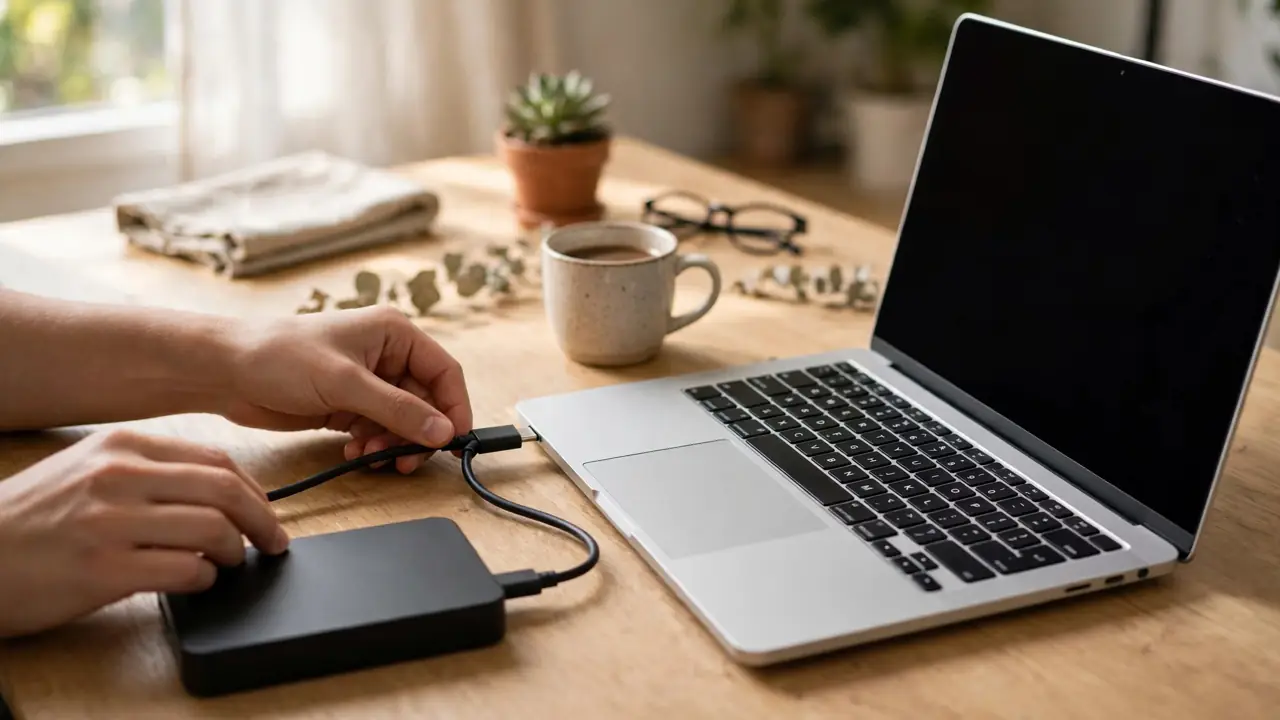
I always start with an external drive, because it is fast, it is simple, and it works even when the internet is slow. Plug the drive in, and let your computer’s built-in tool do the work. On Windows, that is Windows Backup and File History for folders, and on a Mac, it is Time Machine. Both are free, both come with the system, and both are far better than doing nothing.
Here is exactly what I do. First, I plug in the drive and I check that my computer sees it. Then I open the backup tool, I choose the drive, and I let it run its first full backup. The first run takes the longest, sometimes a few hours for a big photo library, so I start it in the evening and let it run overnight. I do not keep clicking it or unplugging it to check. I just let it finish, and I check it in the morning.
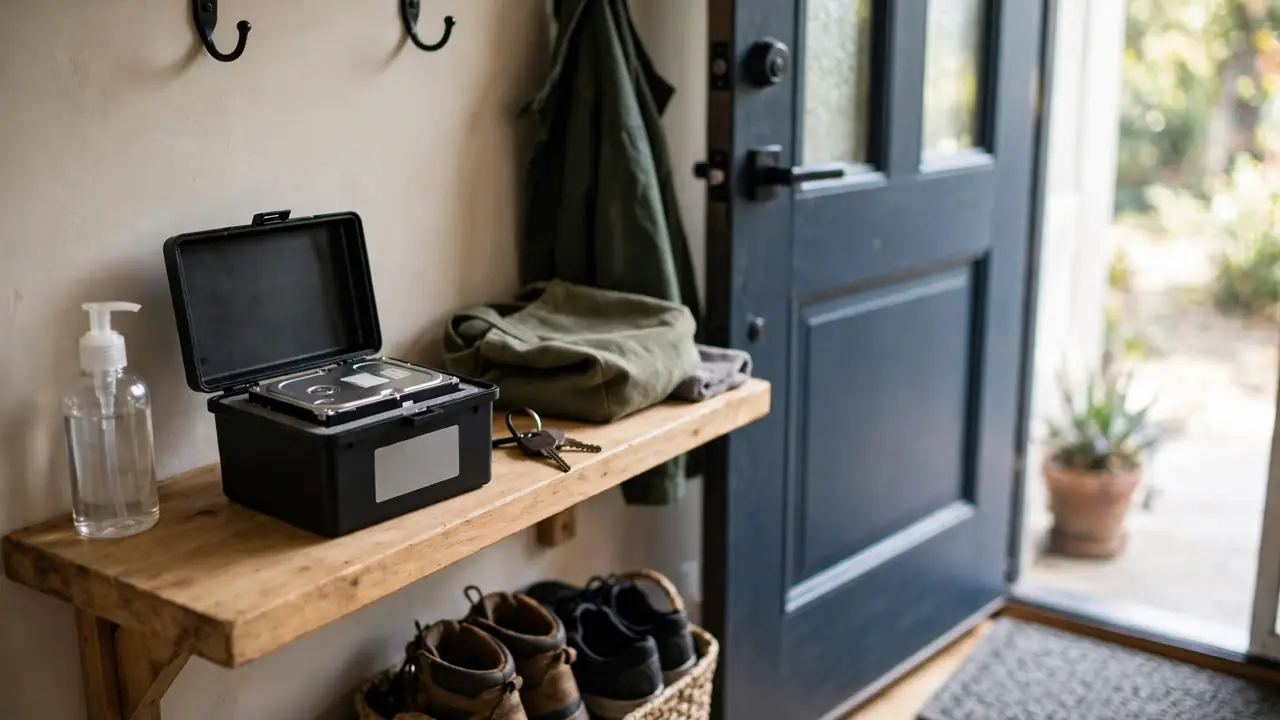
Then comes the step most people skip, and I skipped it too, for years. I unplug the drive. I know that sounds too simple to matter, but an external drive that stays plugged in all the time can be hit by the same ransomware or power surge that hits your computer. When the backup is done, unplug it, put it somewhere safe in your home, and plug it back in once a week for the next backup. That is your offline copy, and it costs nothing extra.
One more honest warning from my own mistakes: buy a drive that is bigger than you think you need. If your computer holds 500 gigabytes of files, a 500-gigabyte drive will fill up fast once versions pile up. I aim for at least twice the size of the files I am backing up, so old versions have room to live. A drive that fills up and stops backing up silently is worse than no drive at all, because it gives you false comfort.
Step 4: Add a Cloud Copy for the Off-Site Part
I resisted cloud backup for a long time, because I did not like the idea of my files living on someone else’s computers. Then a friend’s house was burgled, and both his laptop and his backup drive were taken in the same night. That changed my mind in one conversation. The cloud is not perfect, but it is the easiest off-site copy most of us will ever have, and it protects you from the one disaster a home drive cannot: losing everything in your home at once.
You may already have a free starting point. As listed in October 2026 guides, a free Microsoft account includes 5 GB of OneDrive storage, a Google account includes 15 GB shared across Gmail, Drive, and Photos, and Dropbox Basic includes 2 GB. Those free tiers fill up fast with photos and video, so most people with a large library will need a paid plan or a dedicated backup service. That same October 2026 comparison listed Backblaze Personal Backup at $99 per year for unlimited data. I am not recommending one service over another here, and you should check the current price on the provider’s own page before you subscribe, because these figures change.
Here is how I choose. If I only need to protect documents and a modest photo collection, a cloud storage plan I already pay for may be enough. If I need a true whole-computer backup that runs on its own and keeps versions, I look for a dedicated backup service instead of a sync folder. The question to ask is simple: if I delete a file today, can I get last week’s version back? If the answer is yes, it is acting like a backup. If the answer is no, it is just sync, and I do not count it as my third copy.
Set the cloud backup to run on its own, and then leave it alone. The first upload takes the longest, and on a slow connection it can take days, not hours. That is normal. Let it run in the background, and do not panic if it looks slow on day one. Once the first upload finishes, later backups only send what changed, and they are much faster. I check mine once a month, and that is enough.
Step 5: Test Your Backup Before You Trust It
I will be blunt with you, because this is the step that separates a real backup from a comforting story. A backup you have never restored from is a guess, not a guarantee. I know, because I once proudly told a friend my backup was fine, and when we tried to restore one folder, the drive made the same clicking sound my dead laptop had made. The backup was dead too, and I had never checked.
Testing is easy, and it takes ten minutes. Pick one small folder you care about, like a folder of photos from last year. Restore it to a new folder on your computer, not on top of the original, and open a few files. Do the photos open? Do the documents read correctly? If yes, your backup works. If no, you have found the problem on a quiet Tuesday, not on the worst day of your year, and that is a gift.
Test each copy in turn, not just the easy one. Restore one file from your external drive, and restore one file from your cloud copy. Write the date of the test on a sticky note or in your phone, and repeat it every three months. I do mine on the first Sunday of each quarter, and it has become a boring little ritual. Boring is exactly what you want from a backup. Exciting backups are the ones that fail.
While you test, also check your backup settings. Is the backup actually running on schedule, or did it stop three months ago because the drive was full? Is your cloud account still in good standing, or did a card expire? These small checks catch most failures, and they take less time than making a cup of tea. Do not skip them because everything looks fine. Looking fine is what a failed backup does best.
Step 6: Build a Routine You Will Actually Keep
I have tried complicated backup routines, with spreadsheets and reminders and colour-coded drives, and every single one of them collapsed within a month. The routine that stuck is almost embarrassingly simple, and I still use it today. Once a week, I plug in my external drive and let it back up. Once a month, I check my cloud backup and restore one test file. Once a quarter, I take a copy off-site or check that my cloud copy is current. That is the whole system.
Tie the weekly backup to something you already do. I do mine on Sunday evening, while I make dinner, because the computer is on anyway and the drive is sitting by the desk. If Sundays do not work for you, pick laundry day, or payday, or any day you will remember. The best backup schedule is the one you will actually follow, not the one an expert recommends. I would rather you back up once a month for ten years than every day for two weeks and then never again.
Keep a second off-site copy if you can, even if it is simple. Some people keep a drive at a family member’s house and swap it every few months. Others trust the cloud alone for the off-site part, and that is fine too. The point is not to build a perfect system. The point is to make sure no single event, no single thief, no single flood, and no single virus can take all three copies at once. If your plan passes that test, it is good enough, and you can improve it later.
Finally, write your plan down. Write where each copy lives, what service you use, and how to restore from it, and keep that note somewhere safe, away from the computer itself. If your computer dies, you will be stressed, and stressed people forget passwords and steps. A one-page note turns a crisis into a checklist. Mine lives in a drawer with my passport, and I hope I never need it in a panic again.
Do this today, not someday: plug in any external drive you already own, run one full backup tonight, and unplug the drive in the morning. Even that single step puts you ahead of most people. Then add your cloud copy this week, and test one restore next weekend. Three small steps, and the 3-2-1 rule is yours.
Frequently Asked Questions
Is one backup enough if I am careful?
One backup is far better than none, and if that is all you can do today, do it today. But one backup still leaves a gap. If that single drive fails, or it is stolen with your laptop, you are back where you started. The 3-2-1 rule exists because two backups on different kinds of storage, with one off-site, close the gaps that one copy leaves open.
Does cloud sync count as a backup?
Not on its own. Sync copies your current files everywhere, so a deletion or a ransomware attack can spread to the synced copies too. A true backup keeps older versions and keeps deleted files for a while, so you can step back in time. Use sync for convenience, and use a real backup service or versioned backup for safety.
How often should I back up my computer?
For most home users, a weekly external drive backup plus a cloud backup that runs on its own is a strong routine. If you work on important files every day, back up more often, or let an automatic tool run daily. The right frequency is the one that matches how much work you are willing to lose. For me, losing a week of photos is painful, but losing a year would be devastating, so weekly is my floor, not my ceiling.
What size external drive should I buy?
Aim for at least twice the size of the files you want to back up, so older versions have room. If your files take up 500 gigabytes, look for a 1-terabyte drive or larger. A drive that fills up will stop backing up, sometimes without a clear warning, so bigger is safer than exactly enough.
Should I unplug my backup drive after each backup?
Yes, if you can. An unplugged drive cannot be encrypted by ransomware on your computer, and it cannot be damaged by the same power surge. Plug it in for the backup, let it finish, and then unplug it and store it safely. This simple habit gives you an offline copy, which is the extra layer in the 3-2-1-1-0 version of the rule.
How do I know my backup actually works?
Restore a small folder to a new location and open the files. If they open correctly, your backup works. Do this for each copy, external and cloud, and repeat it every few months. A backup you have never tested is a hope, not a plan.
Final Thoughts
I wish I could go back and tell my younger self to spend one hour on backups before that laptop died. I cannot. But I can tell you, and you are still in time. Your photos, your work, and your documents are worth one calm hour today, and the 3-2-1 rule makes that hour simple: three copies, two kinds of storage, one copy off-site, and a test to prove it works.
Start tonight, even if you start small. Plug in a drive, run a backup, and unplug it in the morning. Add your cloud copy this week. Test one restore next weekend. Then tell me in the comments which step you did first, and what surprised you about it. I read them, and I answer them, because I know how lonely it feels to lose files, and how good it feels to know they are safe. You have got this, and your future self will thank you.
Sources I Used
- Tanit365, Small Business Data Backup Strategy 2026: The 3-2-1 Rule
- JustWebWorld, Easiest Way to Back Up Your Computer to the Cloud
- TechTimes, How to Back Up Your Data the Right Way in 2026: 3-2-1 Backup Rule Explained
- Dom’s Tech Blog, Computer Backup Checklist: Everything You Need to Back Up (2026 Guide)
React to this story






1 Comment