
Key Points
Key Points
- Gather every photo into one place before you organise anything
- Delete duplicates and blurry shots first to shrink the job
- Use a simple year, month and event folder structure
- Name files with dates and events so search actually works
- Back up with the 3-2-1 rule: three copies, two media, one off-site
- Scan printed photos before they fade or get damaged
- Keep the system alive with a ten-minute weekly tidy
On This Page
- What You Will Learn in This Guide
- First, Gather Every Photo Into One Place
- Subscribe to CAAW News
- Delete Ruthlessly Before You Organise Anything
- Build a Folder System You Will Actually Keep
- Name Your Files So Future You Can Find Them
- Rescue the Shoebox: Scan Your Printed Photos
- Tag Faces, Places and Favourites
- Back Up With the 3-2-1 Rule
- Keep It Tidy With a Ten-Minute Weekly Habit
- Frequently Asked Questions
- What is the best folder structure for photos?
- Should I use Google Photos, iCloud or a local drive?
- How many backups of my photos do I need?
- How do I deal with thousands of duplicate photos?
- What resolution should I scan old printed photos at?
- How long does it take to organise a big photo collection?
- Final Thoughts
- React to this story
I once tried to find a photo of my grandmother’s eightieth birthday for a family slideshow, and I failed. I knew the photo existed somewhere, but my pictures were spread across three phones, two laptops and a dying hard drive, and after an hour of frantic searching I gave up. That embarrassment stuck with me. Today I can find almost any photo in under a minute, and my whole collection is backed up in three places. If your camera roll feels like a junk drawer and you quietly fear losing photos you can never retake, this guide is for you. I will show you the exact system I use, step by step, and by the end of it you will have a clear plan to organise every photo you own.
I am not a professional archivist. I am an ordinary person with a phone full of photos who finally got tired of the mess. This system works because it is simple enough to keep using.
What You Will Learn in This Guide
- How to gather every photo into one place before you organise anything
- How to delete ruthlessly so the job shrinks instead of growing
- How to build a folder system you will actually keep using
- How to name files so future you can find anything in seconds
- How to rescue and scan your old printed photos
- How to tag faces, places and favourites for instant searching
- How to back up your collection with the 3-2-1 rule
- How to keep it all tidy with a ten-minute weekly habit
First, Gather Every Photo Into One Place
When I finally tackled my mess, my first instinct was to start deleting and sorting straight away. That was a mistake. I kept finding new stashes of photos in old phones and email attachments, and every new stash broke the system I had just built. Gathering first changed everything.
Start by choosing one home for your photos. For most people that is a cloud library like Google Photos or Apple Photos, or a single folder on a computer that gets backed up. Then pull everything in: old phones, memory cards, laptops, messaging apps and email attachments. Do not sort yet. Just gather. Yes, the pile will look terrifying for a while, but a single big pile is far easier to organise than ten hidden ones.
While you gather, turn on automatic backup on your phone so nothing new gets lost during the process. On Android, Google Photos can back up every new photo automatically once you switch backup on in settings, and on iPhone, iCloud Photos does the same job. That one switch protects every photo you take from today onwards, which is a wonderful feeling.

Delete Ruthlessly Before You Organise Anything
Here is the truth that saved me hours: you do not have a photo organisation problem, you have a photo accumulation problem. I deleted almost a third of my collection before I organised a single folder, and the whole job suddenly felt possible.
Start with the easy wins. Delete duplicates, burst sequences where you kept twenty near-identical shots, blurry photos, accidental screenshots and photos of random documents you no longer need. Most photo apps can find duplicates for you, and sorting by date makes it easy to work through one event at a time. I did this in short evening sessions with a cup of tea, twenty minutes at a time, and it never felt like a chore.
Be honest with yourself about the “maybe” photos. If a photo is blurry, badly framed and of nothing special, you will never print it, share it or look at it again. Let it go. The photos you keep become more precious when they are not buried under thousands you never wanted. If phone clutter is part of your problem, our guide to declutter your phone covers the wider clean-up too.
Build a Folder System You Will Actually Keep
I have tried complicated folder systems with colour codes, ratings and twenty nested levels, and every single one collapsed within a month. The system that survived is almost boringly simple: year, then month and event. That is it.
My folders look like this: 2026, then inside it 2026-06 Beach Holiday, 2026-07 Mum’s Birthday, and so on. The date at the start keeps everything in order automatically, and the short event name tells me what is inside without opening it. If you use a cloud library instead of folders, the same idea works as albums: one album per event, named the same way.
Keep a small number of top-level folders for the things that do not fit events, such as Family, Travel, Work and Favourites. Resist the urge to create a folder for every tiny category. A system with ten folders you use beats a system with a hundred folders you avoid. Photo management experts make the same point: a comparison of 2026 tools notes that the best tool is the one that fits how you actually browse, not the one with the longest feature list, and you can see that comparison at Lilach Bullock’s photo management roundup.
Name Your Files So Future You Can Find Them
File names like IMG_4829 mean nothing to anyone, including you, six months from now. Renaming sounds tedious, but you do not need to rename every single photo. You need a consistent habit for the photos that matter.
For event folders, I rename key photos with a simple pattern: date, event and a short description, for example 2026-06-14-beach-holiday-sunset.jpg. For the rest, the folder name does the work, and I leave the original file names alone. If you scan old family photos, this habit matters even more: a guide to organising old family photos recommends giving albums meaningful titles and adding names and dates to individual photos, because a photo without a name or date slowly loses its story, and you can read that advice at Photomyne’s family photo guide.
One more habit pays off enormously: keep one small album called Profile Photos. Whenever someone takes a genuinely good photo of you, save a copy there. When you next need a headshot for a job application, you will be grateful, and our guide on how to write a CV that gets interviews explains why a good photo matters more than people think.
Rescue the Shoebox: Scan Your Printed Photos
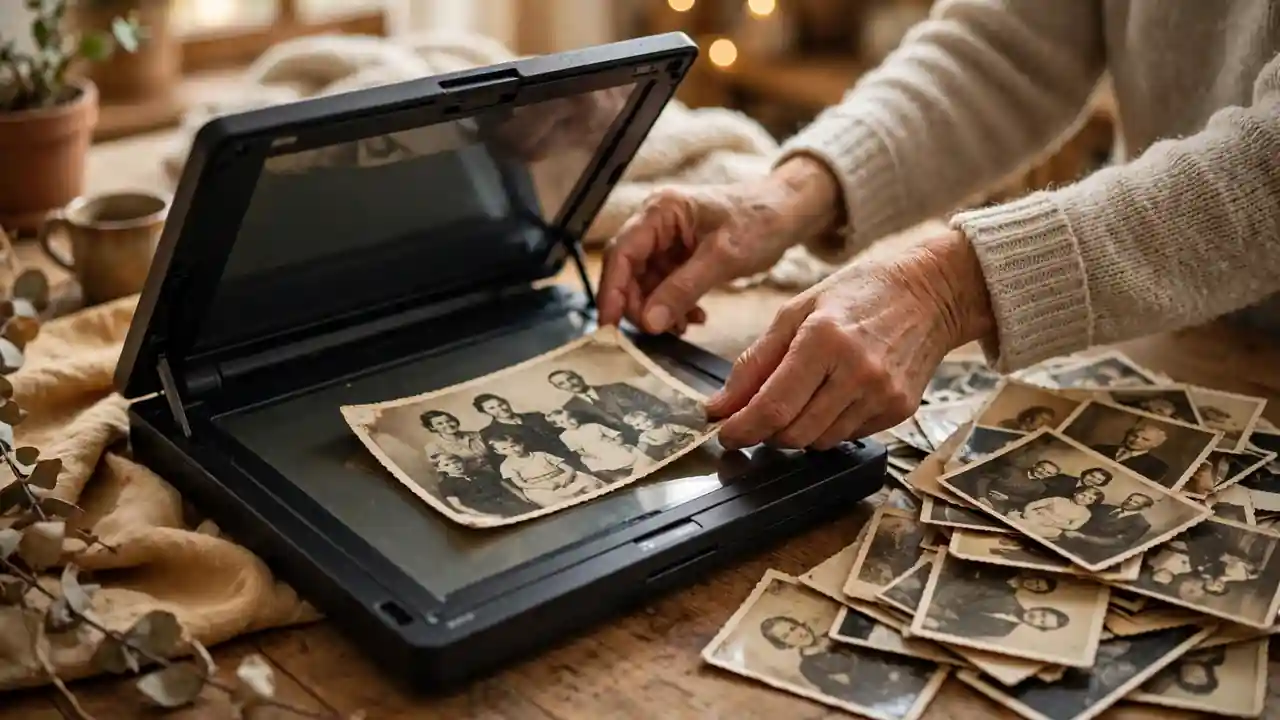
My mother kept forty years of family photos in a shoebox in a damp cupboard, and when I finally opened it, some of the oldest prints were already fading and sticking together. Printed photos are not permanent. Heat, damp and sunlight damage them slowly, and a single flood or fire can destroy them in minutes.
Scanning is easier than most people expect. A flatbed scanner gives the best quality for precious prints, and a phone scanning app is perfectly fine for a quick pass through a big box. Scan at a decent resolution, save the files with names and dates while you still remember who is in them, and store them in the same year-and-event system as your digital photos. Ask older relatives to help with the names, because once that knowledge is gone, no software can bring it back.
After scanning, keep the originals in a cool, dry place in acid-free sleeves if you can. The scans are your backup, but the prints are still the originals, and they deserve a little care.
Tag Faces, Places and Favourites
Folders and names get you most of the way, but tags are what make searching feel like magic. I tag faces in my cloud library, and now typing my daughter’s name brings up every photo of her from the last ten years in seconds.
Most modern photo apps do face grouping and location tagging automatically, so you mainly need to check and correct them rather than doing it all by hand. I also star my favourites as I go: the photos I would actually print, frame or share. That favourites collection is the one I show visitors, and it is the one I would rescue first in an emergency, because it holds the best of everything.
Do not try to tag your entire back catalogue in one weekend. Tag new photos as they arrive, and work through old events slowly when you feel like it. A little tagging done regularly beats a giant tagging project that never starts. On a tablet, browsing and tagging feels almost pleasant, and if you are shopping for one, our iPad Air M3 review looks at a device many people use exactly for this.
Back Up With the 3-2-1 Rule
Organising your photos is only half the job. Protecting them is the other half, and this is where I get serious, because I have lost photos before and I never want to feel that way again.
The rule photographers trust is called 3-2-1: keep three copies of your photos, on two different kinds of storage, with one copy off-site. In practice, that means your phone or computer holds one copy, an external hard drive holds a second, and a cloud service holds the third. One travel photographer’s backup guide puts it bluntly: three copies are two, two is one, and one copy is as good as none, and you can read that workflow at Cultured Kiwi’s photography backup workflow.
Redundancy is the whole point. A backup guide for 2026 makes the same case clearly: do not stop at one service and call it done, because a single account problem or a single failed drive can take everything with it, and you can read that advice at Half Half Travel’s photo backup strategy. Set your cloud backup to automatic, plug in your external drive once a month, and check once in a while that your backups actually contain recent photos. A backup you never test is just a hope.

Keep It Tidy With a Ten-Minute Weekly Habit
The system only works if it stays alive, and staying alive takes far less effort than the big clean-up did. I spend ten minutes every Sunday evening on my photos, and that tiny habit has kept everything organised for years now.
Each week I delete the obvious duds from the past seven days, move the keepers into their event folders or albums, star my favourites, and check that my cloud backup is running. That is the whole routine. Ten minutes, once a week, and I never face another mountain of 23,000 unsorted photos again.
If you take nothing else from this guide, take this: start today, start small, and forgive yourself for the mess. Your photos are your memories, and every single one you organise and back up is a memory you have protected. Future you will be so grateful.
The rule that changed everything for me: three copies, two kinds of storage, one off-site. I used to think one cloud account was enough. Then a friend lost access to an account for a month and could not reach a single photo. Now I never rely on one place alone.
Frequently Asked Questions
What is the best folder structure for photos?
Year, then month and event works for most people, for example 2026-06 Beach Holiday. It sorts itself automatically, it is easy to remember, and it works in folders and in cloud albums alike.
Should I use Google Photos, iCloud or a local drive?
Use what fits your devices. Google Photos suits Android users, iCloud suits iPhone users, and a local drive plus a cloud service suits people who want full control. The best choice is the one you will actually keep using, ideally combined with a second backup.
How many backups of my photos do I need?
Follow the 3-2-1 rule: three copies, on two different kinds of storage, with one copy off-site, such as a cloud service or a drive kept somewhere else. That protects you against device failure, theft and disasters at home.
How do I deal with thousands of duplicate photos?
Use a duplicate finder in your photo app or a dedicated tool, then work through one event at a time in short sessions. Delete burst sequences down to the best one or two shots, and do not try to finish the whole library in a single day.
What resolution should I scan old printed photos at?
Scan at 300 dots per inch or higher for prints you care about. That gives you enough detail to reprint them later and to view them clearly on modern screens.
How long does it take to organise a big photo collection?
It depends on the size, but most people can gather and delete in a few evenings and finish the folder system over a couple of weeks of short sessions. The ten-minute weekly habit then keeps it tidy with very little effort.
Final Thoughts
When I think back to that failed search for my grandmother’s birthday photo, I mostly feel relief that I fixed the problem before I lost anything irreplaceable. Organising photos sounds boring, but what you are really doing is protecting your memories and making them easy to enjoy again. Every folder you create and every backup you switch on is a small gift to your future self.
Congratulations on reading this far, because that already puts you ahead of most people with a chaotic camera roll. Start tonight with one small step: switch on automatic backup, then gather your photos into one place this week. And if you have a photo organisation trick that works for you, please share it in the comments, because I am always looking for a better way.
React to this story