
Key Points
Key Points
- The Identity Theft Resource Center tracked 1,803 data compromises in H1 2026, with 471.2 million victim notices, already exceeding all of 2025.
- More than 19 billion passwords have been exposed globally, and 80 to 85 percent of people still reuse passwords across accounts.
- Use a password manager for unique passwords everywhere, enable two-factor authentication, and adopt passkeys where available.
- Audit phone app permissions, turn off ad tracking, tighten social media privacy, and clean up old unused accounts quarterly.
- Prepare a breach response plan in advance: change passwords fast, monitor statements, freeze credit, and watch for phishing.
On This Page
- Subscribe to CAAW News
- What You’ll Do in This Guide
- Step 1: Fix Your Passwords Once and for All
- Get a password manager today
- Turn on two-factor authentication everywhere
- Step 2: Find Out What Has Already Leaked About You
- Step 3: Lock Down Your Phone in 30 Minutes
- Audit every app’s permissions
- Turn off ad tracking
- Step 4: Shrink Your Social Media Footprint
- Step 5: Protect Your Email and Your Messages
- Step 6: Browse Without Being Watched
- Step 7: Starve the Data Collectors
- Step 8: Build Your Breach Response Plan
- Your Ongoing Checklist
- Frequently Asked Questions
- Final Thoughts
- React to this story
The text arrived at 2:14 in the morning. “Your OTP is 884201. If this wasn’t you, call us immediately.” I hadn’t requested any OTP. Someone in another city was trying to get into my bank account while I slept.
My hands were shaking as I opened my banking app. They had my password — the same one I’d been reusing since 2019 because it was easy to remember. That night cost me four hours on hold, a frozen account, and a lesson I will never forget.
I’m Priya Sharma. I’ve covered cybersecurity and digital privacy for ten years, and I’ve helped hundreds of readers clean up after breaches. And I’m telling you honestly: the system I’m about to share is the exact one I use myself, every single day.
You know that cold feeling — wondering which of your accounts is next, whether your photos, messages, or bank details are already floating around some hacker’s forum. Here’s the deal: you don’t need to be technical. You need a weekend, this guide, and the willingness to do things properly once.
Whether you’ve never thought about privacy or you’ve been burned before — let’s lock your digital life down, step by step. Ready? Let’s get started.
One objection I hear constantly: “I have nothing to hide.” I used to think that too — right up until my reused password nearly cost me my savings. Privacy isn’t about hiding. It’s about control: deciding who gets your data instead of letting strangers take it.
What You’ll Do in This Guide
- Step 1: Fix your passwords once and for all (the highest-impact step)
- Step 2: Find out what has already leaked about you
- Step 3: Lock down your phone in 30 minutes
- Step 4: Shrink your social media footprint
- Step 5: Protect your email and your messages
- Step 6: Browse without being watched
- Step 7: Starve the data collectors
- Step 8: Build your breach response plan
Eight steps. One weekend. Let’s go.
Step 1: Fix Your Passwords Once and for All
I’ll be blunt: if you take only one step from this entire guide, make it this one. When I investigated my own 2 AM scare, the attacker hadn’t done anything clever. They’d simply taken my old password from a breached shopping site and tried it on my bank. It worked. That’s called credential stuffing, and it’s how most account takeovers happen.
The numbers are grim. More than 19 billion passwords have been exposed in public breaches worldwide. About 80 to 85 percent of people reuse passwords across accounts. And roughly 68 percent of leaked passwords can be cracked within a day. Your memory was never designed to hold 100 unique passwords. Stop asking it to.
Get a password manager today
A password manager is an app that creates long, random, unique passwords for every site and remembers them for you. You memorize one strong master password; it handles the rest. I resisted this for years — “what if the manager gets hacked?” — and that was a mistake. A reputable manager with a strong master password is vastly safer than reused passwords. I learned this the hard way so you don’t have to.
Start with your most important accounts, in this order: email first (because email resets every other password), then banking, then social media and shopping. Let the manager generate each password at maximum length. Work through the list over a few evenings if you need to. Once the critical accounts are unique, update the rest as you log in to them.

Bonus Tip: Write your master password on paper and keep it somewhere safe at home — not in a notes app, not in an email to yourself. Paper can’t be hacked remotely.
Turn on two-factor authentication everywhere
Two-factor authentication (2FA) means a stolen password alone isn’t enough to break in — the attacker also needs a second code from your phone. Turn it on for every account that offers it, starting with email and banking.
Now, not all 2FA is equal. Authenticator apps beat text-message codes, because texts can be intercepted through SIM-swapping attacks (where a criminal convinces your phone company to move your number to their SIM). And where sites offer passkeys — logins that use your fingerprint or face instead of a password — set them up. Passkeys can’t be phished the way passwords can.
Once your passwords are unique and 2FA is on, you’ve closed the door I left open that night in March. Now let’s check what’s already outside it.
Step 2: Find Out What Has Already Leaked About You
Here’s an uncomfortable truth I share with every reader: with billions of credentials exposed, there’s a good chance your email address has appeared in at least one breach. When I first checked mine, I found seven. Seven! Old forum accounts I’d forgotten existed, a fitness app from 2017, a food delivery service. I felt sick — then I got to work.
Go to Have I Been Pwned, the free breach-checking service run by security researcher Troy Hunt, and enter your email addresses. It will show you exactly which public breaches exposed them and what data was taken. If your address shows up, treat every password tied to it as compromised and change it using Step 1.
Don’t stop at a one-time check. Many password managers now include breach monitoring that alerts you automatically when your credentials appear in new leaks — turn that feature on. Some banks also offer dark-web monitoring. The earlier you learn about an exposure, the faster you can act before attackers use it.
Note: Have I Been Pwned is a legitimate, widely trusted service. You enter only your email address — never a password — to check it.
Step 3: Lock Down Your Phone in 30 Minutes
Your phone knows where you go, who you talk to, and what you buy. When I finally audited mine, I found a weather app tracking my precise location 24/7 and a game reading my contacts. I hadn’t agreed to any of it consciously — I’d just tapped “Allow” during setup years ago and forgotten. Sound familiar?
Both iPhone and Android give you powerful privacy controls. They’re just buried. Spend thirty minutes on this — it’s the best half-hour you’ll invest all year.
Audit every app’s permissions
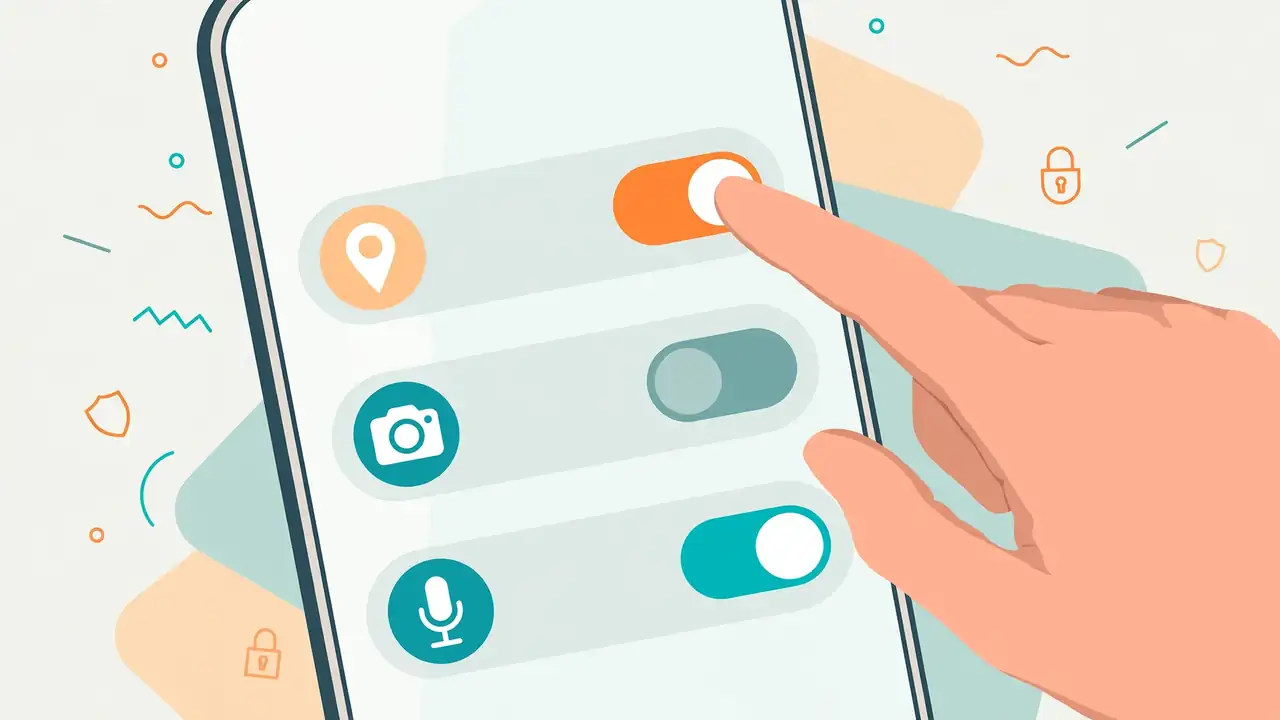
On iPhone, go to Settings → Privacy & Security. On Android, go to Settings → Privacy → Permission Manager. Then go app by app and ask one question: does this app need this permission to work? A flashlight app does not need your location. A game does not need your contacts. Revoke anything that isn’t obviously necessary.
Pay special attention to four permissions — microphone, camera, location, and contacts — because they reveal the most about your life. Where possible, grant location “only while using the app” instead of “always,” and choose approximate location over precise when the app doesn’t need your exact spot.
Turn off ad tracking
On iPhone: Settings → Privacy & Security → Tracking, then turn off “Allow Apps to Request to Track.” On Android: Settings → Privacy → Ads, opt out of ad personalization and delete your advertising ID. This won’t stop ads, but it stops apps from building a cross-app profile of your behavior. While you’re in there, turn off location history in your Google account too.
Your turn: pick up your phone right now and revoke one permission you know is wrong. I’ll wait. Feels good, doesn’t it? Now let’s clean up where the whole world can see you.
Step 4: Shrink Your Social Media Footprint
A friend of mine — a teacher — once had her identity stolen by someone who’d simply read her public Facebook profile: birthday, hometown, mother’s maiden name from a Mother’s Day post, even her dog’s name. Every one of those is a password-reset security question. She never posted anything “sensitive.” She just posted her life.
Social media is the richest public source of personal data about most people. Here’s how to shrink yours without deleting your accounts.
First, set posts and photos to friends only, not public. Remove your full birthday — or at least the year — from public view. Review the third-party apps connected to each account (that quiz app from 2019 still has access to your profile) and disconnect anything you don’t use. Then search your own name in a private browser window and look at what a stranger sees. If old public posts reveal your home, workplace, or kids’ school, delete or restrict them.
Be ruthless about location sharing. Turn off precise location tagging on posts. Don’t post vacation photos in real time — you’re advertising an empty home. And never, ever answer those viral quizzes asking for your first pet’s name or childhood street. Those aren’t games. They’re security-question harvesting.

Bonus Tip: Do this cleanup once a year, like spring cleaning. Set a calendar reminder now — future you will thank present you.
Step 5: Protect Your Email and Your Messages
Think of your email as the master key to your digital life. Forgot a password? The reset link goes to your email. Someone owns your email, they own everything behind it. I treat mine like my house keys now — and it started the night I realized how close I’d come to losing it all.
Create a separate email address for important accounts — one you never publish, never use for newsletters, never give to shops. Use email aliases or masked addresses for shopping and signups, so a breach at some retailer doesn’t expose your real address. And unsubscribe from marketing lists you never read; every stored address is another database waiting to leak.
For messaging, move sensitive conversations to apps with end-to-end encryption — meaning even the company running the service can’t read them. Turn on disappearing messages for chats that don’t need a permanent record. And remember the unglamorous truth: no encryption helps if someone can read your unlocked screen. Set your phone to lock quickly and keep message previews off the lock screen.
Email secured, messages encrypted — now let’s fix the window everyone looks through: your browser.
Step 6: Browse Without Being Watched
Every site you visit can see an astonishing amount about you: your location, your device, your interests, your trail across the web. Advertisers stitch this into a profile and follow you from site to site. I find it creepy, and once you see it, you will too.
Four changes make a real difference. First, turn on the strictest tracking protection your browser offers — it’s usually one toggle in settings. Second, clear cookies regularly, or set your browser to do it automatically on close. Third, be skeptical of free VPNs: running servers costs money, so ask how a free service pays its bills — often by logging and selling the very data you’re trying to protect. If you use a VPN on public Wi-Fi, choose a reputable paid one with an audited no-logs policy. Fourth, use private browsing for sessions you don’t want tied to your profile — but know its real limit: it hides activity from others using your device, not from your internet provider or the websites themselves.
Note: I’m not recommending any specific VPN here because the honest answer is “it depends on your threat model” — a journalist and a casual traveler need different things. Research current independent audits before you pay for one.
Step 7: Starve the Data Collectors
Here’s the insight that changed how I think about privacy: the best data to protect is data that was never collected. Every account you create, every loyalty card you sign up for, every app you install adds another copy of your personal information to a database you don’t control. And databases leak — the Identity Theft Resource Center tracked 1,803 compromises in just the first half of 2026, putting the year on pace for a record according to ITRC reporting.
So go on a quarterly data diet. Delete accounts for services you no longer use — and actually request data deletion, not just deactivation. Opt out of data broker listings (those people-search sites selling your address and phone number); several services now automate the opt-out process. Remove your phone number wherever it isn’t truly needed. Turn off voice assistant recordings and delete old ones. Check what your Google, Apple, and Microsoft accounts hold about you and prune it.
Before asking “how do I protect my data,” ask the better question: “why is so much of it being stockpiled in the first place?” Then start taking it back.
Step 8: Build Your Breach Response Plan
I’ll be honest with you: even if you do everything in this guide perfectly, a company holding your data can still be breached. That’s not failure — that’s reality. What separates victims from survivors is speed. So write this plan down now, while you’re calm, and keep it where you can find it.
If you get a breach notice: change that account’s password immediately — and any other account where you reused it. Check bank and card statements for unfamiliar charges. Consider a fraud alert or credit freeze, which stops new accounts being opened in your name. Watch for phishing emails exploiting the breach — attackers use stolen details to craft convincing scams, and remember: legitimate companies never ask for your password by email. Keep copies of breach notices for any fraud disputes. And if ID documents like a passport number were exposed, contact the authorities about replacements and extra monitoring.
Bonus Tip: Save your bank’s real fraud hotline number in your phone contacts today. When panic hits at 2 AM, you don’t want to be Googling it — that’s exactly when fake “support” numbers trap people.
Your Ongoing Checklist
Privacy isn’t a one-time project — it’s maintenance, like brushing your teeth. Every few months, run through this: passwords unique and in a manager, 2FA on everywhere, phone permissions audited, social profiles private, breach monitoring active, old accounts deleted, software updated. That last one matters more than people think — updates patch the holes attackers exploit.
Frequently Asked Questions
Do I really need a password manager, or can I just memorize strong passwords?
You can’t. The average person has over 100 accounts, and human memory simply can’t hold 100 unique 16-character passwords. A password manager isn’t a luxury — it’s the only realistic way to have a different password everywhere. Pick one this week; your future self will thank you.
Is free antivirus or a free VPN enough to protect me?
Free tools can help, but be careful about the business model. Many free VPNs log and sell your browsing data — the exact thing you’re trying to protect. If a privacy tool is free, ask how it makes money before trusting it with your traffic.
I’ve never been hacked. Do I still need to do all this?
“Never been hacked” often means “never noticed.” Breach data circulates for months before it’s used. Checking Have I Been Pwned takes two minutes and might surprise you — it surprised me with seven breaches I’d never heard about.
Will passkeys really replace passwords?
They’re heading that way. Apple, Google, and Microsoft all support passkeys now, and they can’t be phished like passwords can. You don’t need to switch everything today, but enable passkeys wherever they’re offered — it’s the direction the industry is moving.
How often should I repeat these steps?
Do the full eight steps once, properly. Then run the short checklist every three to four months: audit permissions, check breach alerts, delete unused accounts, update software. Fifteen minutes, four times a year.
What if my data is already all over the place — is it too late?
It’s never too late. You can’t un-leak old data, but you can stop new leaks, lock every account with unique passwords and 2FA, and remove yourself from data brokers going forward. Every step you take shrinks your attack surface. Start today.
Final Thoughts
That 2 AM text scared me badly. But looking back, it was the best thing that could have happened — because it forced me to stop treating privacy as something I’d “get around to” and start treating it as maintenance, like locking my front door.
You’ve just read the exact system I use. Eight steps, one weekend, and you’ll be ahead of the vast majority of people online. That gap — between you and the easy targets — is exactly what keeps you safe. No shortcuts exist here, and anyone selling you one is lying. Consistency wins.
Now close this tab and do Step 1. Seriously — go install that password manager. Your 2 AM self will thank you.
Did this guide help you? Tell me in the comments which step surprised you most — I read every single one.
React to this story