On This Page
- Subscribe to CAAW News
- What Full Page Fetch is
- Why a full-page screenshot matters
- How it works in three steps
- The three capture modes, and when to use each
- The progress card: what it tells you, and why it never ruins the shot
- The built-in editor: mark it up without leaving Chrome
- Formats, saving, and the BMP and TIFF clipboard note
- Private by design: what it can see, and what it cannot
- Limits you should know before you capture
- Who Full Page Fetch is for
- What it cannot do
- What is confirmed and what is not
- Your first capture: a five-minute checklist
- Frequently asked questions
- Is Full Page Fetch really free?
- Do I need an account?
- Where do my screenshots go?
- Can it capture Chrome pages like chrome://extensions or the Web Store?
- What if a page is extremely tall?
- React to this story
You want to keep a long article, show a client a page, or report a bug at the bottom of a page. You press the screenshot key, and you get only what is on your screen. The rest of the page is missing.
That is the problem Full Page Fetch is built to solve. It is a free Chrome extension from HyperDAF Official that captures a whole web page in one image. It scrolls the page, captures every part, and hands you a single clean screenshot. While it works, a small progress card at the top-right shows live squares and a percent.
Best of all, your screenshot goes nowhere. Full Page Fetch runs entirely on your device: no upload, no account, no tracking. This guide explains what it does, how it works, and what it can and cannot do.
What Full Page Fetch is
Full Page Fetch is a free Chrome extension from HyperDAF Official. Version 2.0.30 was updated on 5 November 2026. It is a small download at 0.07 MB (71.4 KiB), in English, free, local only, with no account. Install it and capture right away — there is no paid version.
HyperDAF is the same maker behind DAF Urdu for Chrome, the free extension that turns Roman Urdu into Urdu script as you type. We covered it on 8 November in our guide to DAF Urdu for Chrome. Both tools share one idea: a small, free extension that works entirely on your device.
Why a full-page screenshot matters
A normal screenshot stops at the bottom of your screen. For a short page, that is fine. For a long article, a landing page, or a full report, it is not — what you wanted to keep is spread across several screens.
A full-page screenshot does the scrolling for you. The extension scrolls the whole page, captures every part, and stitches it into one complete image. The result is a single file you can send or file away — with nothing missing and nothing duplicated at the joins.
That matters most when the whole page is the evidence. A designer reviewing a landing page wants to read it top to bottom as a visitor would. A developer reporting a bug wants the whole page in the report. A student keeping a record wants the complete page, not the first screen.
How it works in three steps
Step 1: install it free from the Chrome Web Store. Add it to Chrome from its store listing. There is no account to create and nothing to pay.
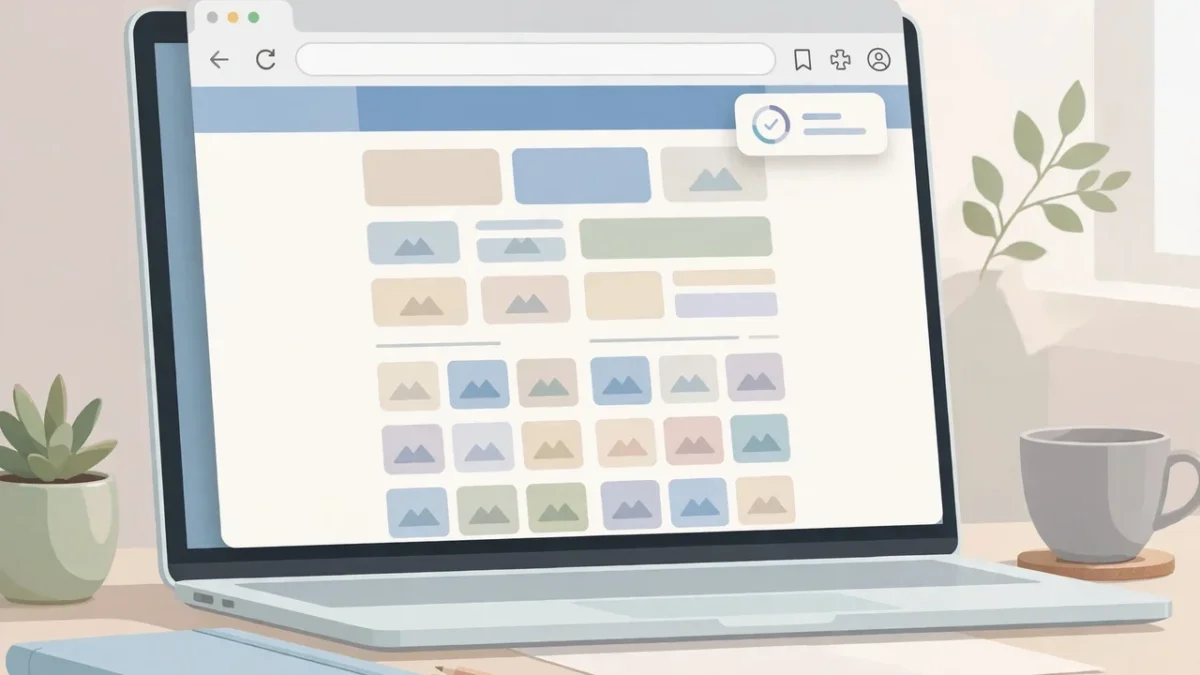
Step 2: open the page and choose what to capture. Open the page and the extension’s small widget. Choose Full Page for the whole page, Visible Area for exactly what is on screen, or drag to Select Area for one region. During a full-page capture, the progress card shows live squares and a percent.
Step 3: preview, edit, and save. The result opens in a new tab at 100 percent actual size — the real image, not a scaled-down preview. Edit it if you need to, then copy it, save it where you choose, download it, or export it as a PDF.
The three capture modes, and when to use each
Full Page captures the whole page, top to bottom, stitched into one image. Use it when you need the complete page: a design review, a record before changes, or a long article to share. If you are not sure, start here — you can crop the result in the built-in editor.
Visible Area captures exactly what is on screen right now, instantly. Use it when you only need what you can see: a bug in the header, a popup, or a section that fits on one screen. It is the fastest mode, with no scrolling and no stitching.
Select Area captures the exact region you drag over. Use it when you need one part of a page: a pricing table, a form, or a single section without the rest. Drag, capture, and you get a small, focused image with no cropping needed.
The progress card: what it tells you, and why it never ruins the shot
During a full-page capture, a compact card stays visible at the browser window’s top-right corner, where the extension icons sit. Its live squares and percent show how far the capture has gone.
The obvious worry is that the card itself will appear in the screenshot. It does not. The card never hides during capture and never appears in the final screenshot. When the capture completes, the card shows Complete, closes, and the screenshot opens in a new tab.
There is one exception, and the official FAQ states it plainly. The card lives in its own window, so it never hides and never appears in the final image. If that window cannot open, a page card is used as a fallback, and it hides only for each capture instant.
The built-in editor: mark it up without leaving Chrome
Capturing the screenshot is only half the job. Most screenshots need a small fix before you send them: a crop, an arrow, a blurred email address. Full Page Fetch has a built-in editor, so you do that work in the same tab. It offers Crop, Pencil, Rectangle, Arrow, Text, and Blur, with Undo and Reset.
Each tool does what its name says. Crop cuts the image down to the part that matters. Pencil draws freehand. Rectangle and Arrow point at the exact button or error message you mean. Text adds a short label. Blur hides anything private, such as an email address, before you share the image. Undo steps back one change, and Reset starts the edit over.
Formats, saving, and the BMP and TIFF clipboard note
Full Page Fetch saves in JPG, PNG, WebP, BMP, and TIFF, and it can export a PDF. You can copy the screenshot to the clipboard, save it where you choose, or download it instantly. PNG suits pages full of text, because it keeps them crisp. JPG suits photographs, where a smaller file matters more. WebP gives you a small file for the web.
There is one detail to know before you copy a BMP or TIFF image. A clipboard copy of BMP and TIFF pastes a high-quality PNG, not a BMP or TIFF file. Saved BMP and TIFF files are exact — so if you need the real file, save or download it instead of copying it.
Private by design: what it can see, and what it cannot
Full Page Fetch runs entirely on your device. It does not upload your screenshots, does not require an account, and does not track you. Captures stay on your device unless you save or share them yourself. The full privacy policy puts it in legal wording: it does not collect, store, sell, or send your screenshots, browsing history, or personal data anywhere. The policy is effective 31 October 2026.
Only your settings — default format, quality, scroll delay, and file name prefix — are stored locally in your browser. The last preview image is kept only in temporary browser session storage so the preview tab can show it, and it is not sent anywhere. There is no account, no sign-in, no analytics, no advertising, no tracking, and no sale of data to third parties.
Like every Chrome extension, it asks for permissions, and the official page lists each one with its reason — all seven tied to a visible part of the job. ActiveTab captures the tab you are viewing. Scripting scrolls the page and selects a region. Tabs opens the preview in a new tab. Downloads saves the file. Storage remembers your settings. ClipboardWrite copies to the clipboard. Offscreen stitches slices and encodes formats.
Notice what is missing: there is no permission for sending your data anywhere, because nothing is sent. The extension is local only by design, and the permission list matches that promise. Judge an extension’s permissions by whether each one matches a feature you can see — here, all seven do. That said, a permission list is a claim, not a proof: we have not audited the extension’s code ourselves.
Limits you should know before you capture
Every screenshot tool has a size limit, and this one states it plainly. The image is completed within a 30,000 pixel height and a 60 million pixel limit. Very tall pages are downscaled to fit, never cut off — a screenshot that silently dropped the bottom of the page would leave you believing you had the whole page.
There is also a limit on what Chrome lets any extension capture. Full Page Fetch cannot capture Chrome’s own protected pages, such as chrome://extensions or the Web Store. That is a Chrome rule, not a missing feature.
Who Full Page Fetch is for
Designers and developers use it for design reviews, bug reports, and before-and-after records. Bloggers use it to keep a record of a page or show a full article to an editor. Students and researchers save long pages for reading later. Support teams capture the exact state of a page a customer is seeing. Learners can also keep a visual record of practice pages — see our guide to the best free resources to learn coding in 2026.
What it cannot do
Full Page Fetch cannot capture Chrome’s protected pages, such as chrome://extensions and the Web Store. It cannot capture a page taller than its stated limits at full size — very tall pages are downscaled, never cut off. It cannot capture video or record your screen. It cannot capture a page that has not finished loading — scroll through first so lazy-loaded sections appear.
What is confirmed and what is not
Every fact here comes from HyperDAF’s own pages, fetched on 10 November 2026 — the Full Page Fetch product page, the privacy policy, and the 8 November 2026 blog post about the extension. The links are in the Sources line above.
Confirmed: version 2.0.30 (updated 5 November 2026), size 0.07 MB, English, free with no paid version, local-only with no account and no tracking, the three capture modes, the progress card behaviour, the six editor tools plus Undo and Reset, the six formats plus PDF export, the BMP and TIFF clipboard note, the size limits, the protected-pages limit, and the seven permissions with their reasons.
Not confirmed by us: that the extension works exactly as described on every page and every Chrome version — we have not tested it ourselves. Not confirmed: any user count, download count, rating, or Chrome Web Store ranking — the official pages publish none of these, and we have invented none.
Your first capture: a five-minute checklist
Install Full Page Fetch free from the Chrome Web Store. Open the page you want and scroll through it once, so lazy-loaded images and sections have loaded. Choose Full Page for the whole page, Visible Area for one screen, or Select Area for one region. Watch the progress card until it shows Complete. Check the result at full size, crop or blur anything you need to, then save it in the format that fits the job.
Frequently asked questions
Is Full Page Fetch really free?
Yes. Every capture, edit, and format is free. There is no paid version of the extension.
Do I need an account?
No. Install it and capture right away. Nothing to sign up for, and nothing is uploaded.
Where do my screenshots go?
Nowhere except where you choose. Captures stay on your device unless you save or share them yourself.
Can it capture Chrome pages like chrome://extensions or the Web Store?
No. Chrome does not allow any extension to capture its own protected pages.
What if a page is extremely tall?
The image is completed within a 30,000 pixel height and 60 million pixel limit. Very tall pages are downscaled to fit, never cut off.
React to this story